Project and Geopoint Setup
ClimaLinks now uses geopoints and projects instead of standalone sites. A geopoint defines the location, and each project attaches to a geopoint.
Accessing Project Setup
Navigate to the project selection screen:
https://app.climalinks.com/select-project
From the top-left controls, you can create a Geopoint or a Project. You must create a geopoint first.
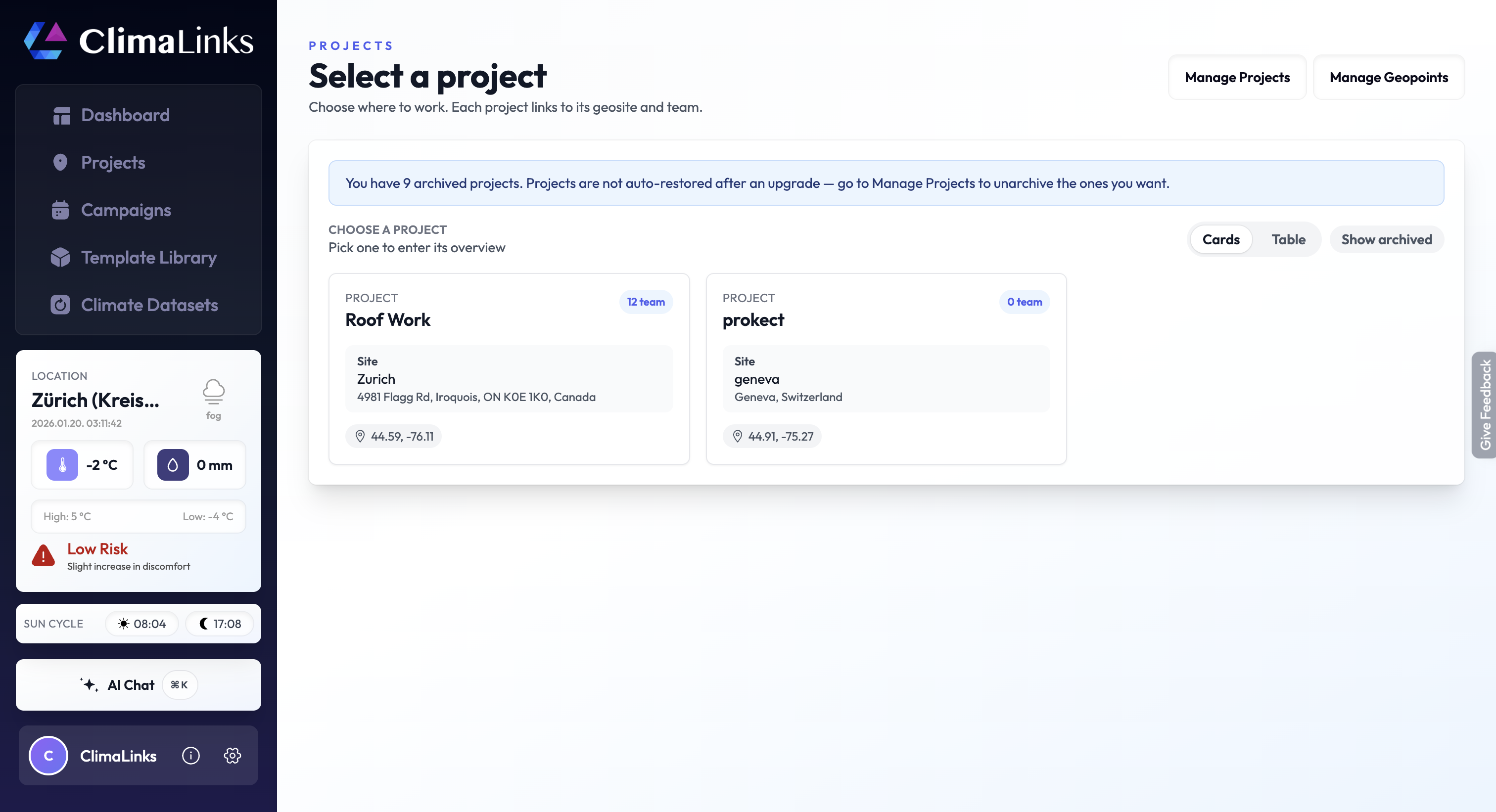
Step 1: Create a Geopoint
Use the Create Geopoint option to define the location that projects will attach to.
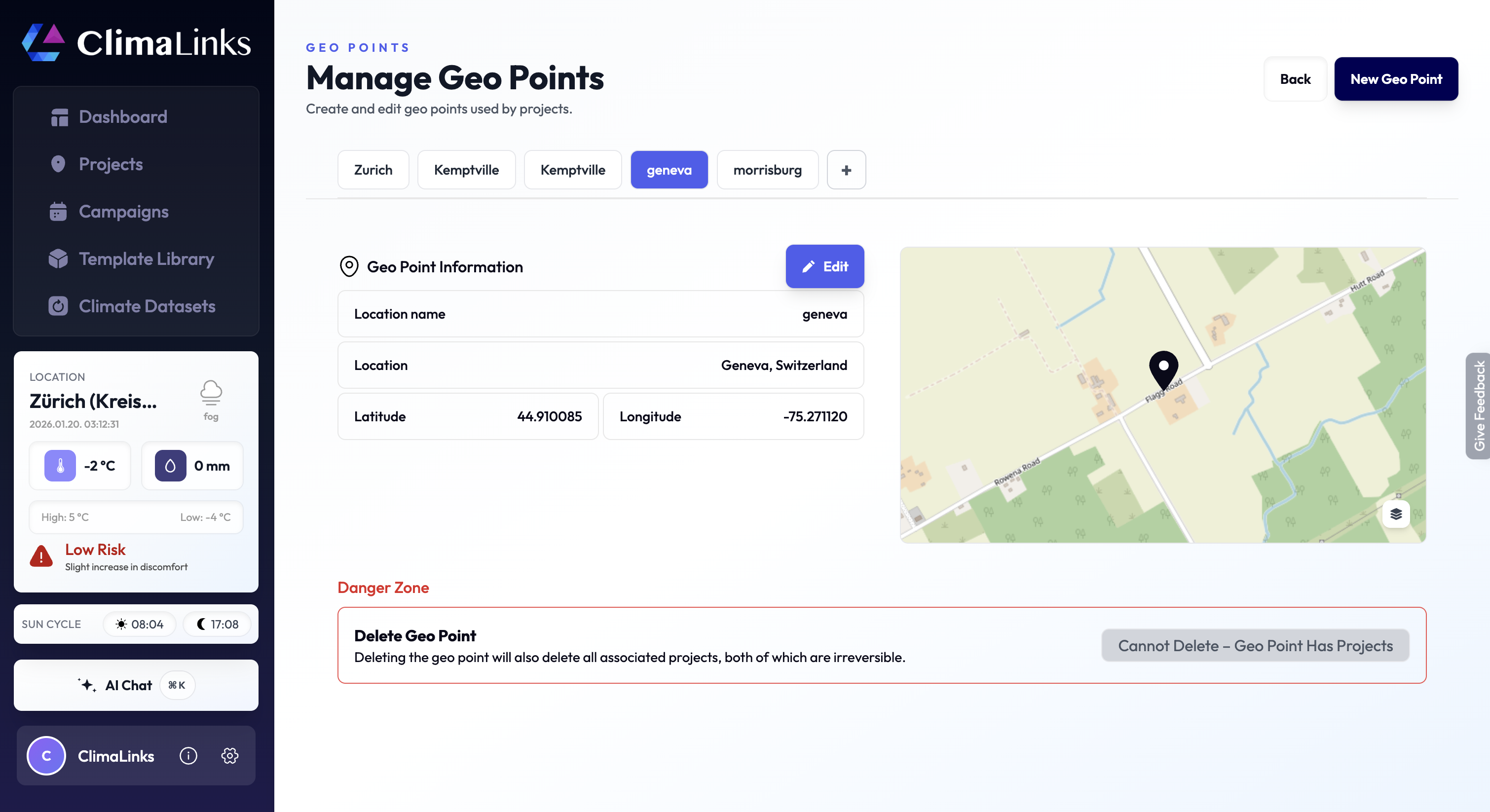
Step 2: Create a Project
Once a geopoint exists, create a project and attach it to that geopoint.
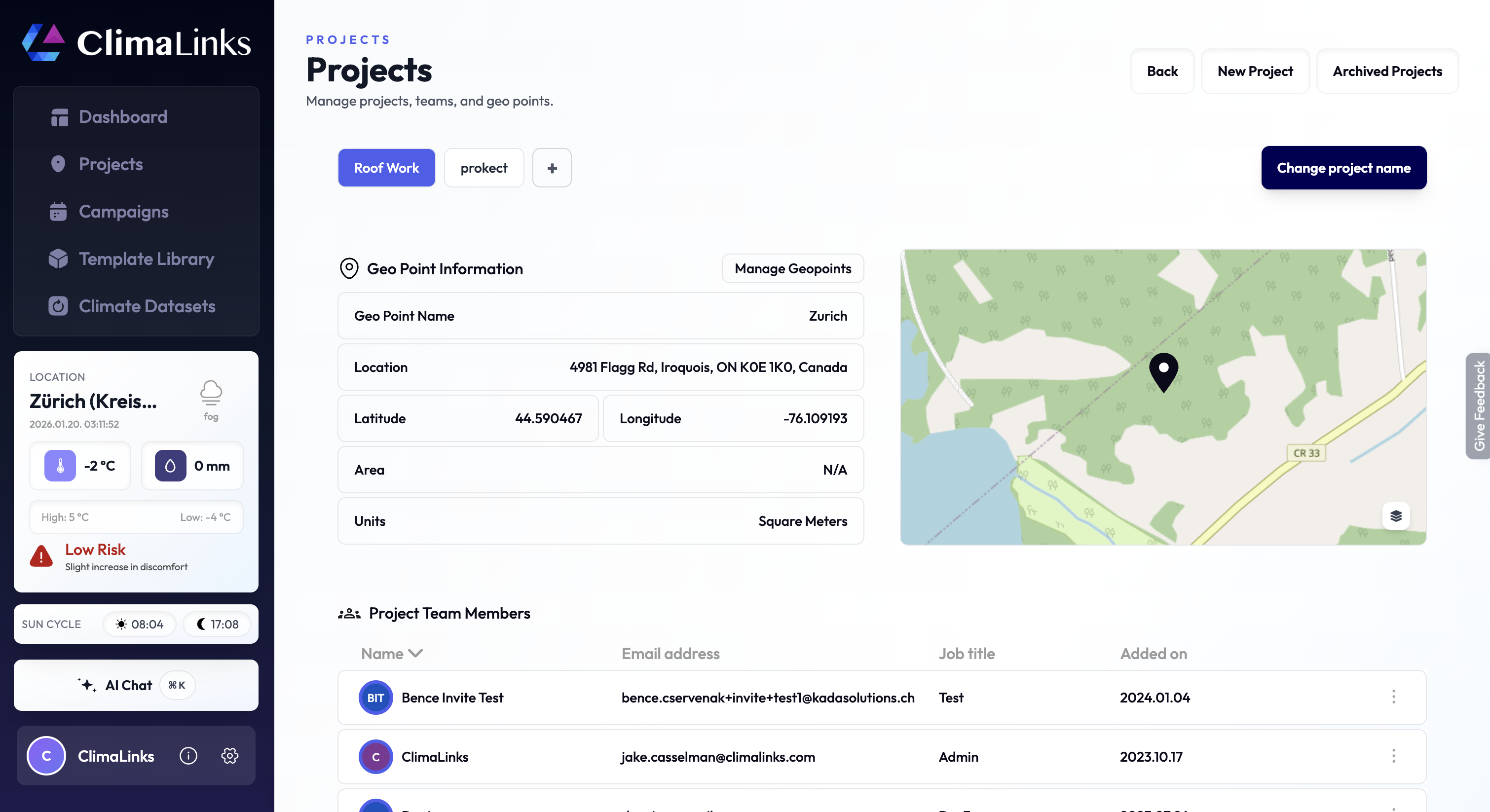
Managing Projects and Geopoints
- Edit Geopoint Details: Update names or locations by searching for an address or selecting a point on the map.
- Manage Project Team Members: Add or remove teammates for each project so the right people can access its data.
- Remove a Project or Geopoint: Use the danger zone controls to permanently delete items you no longer need.
Important Note
Careful
Geopoint location changes can directly impact analyses and outcomes in ClimaLinks. Make changes carefully to maintain accuracy and relevance.
If you have any questions or need further assistance, please reach out to our support team at support@climalinks.com.